Table of Contents
Your game looks smooth… until it doesn’t.
You notice weird screen tearing, jagged edges, or sudden FPS drops, and the first thing you tweak is V-Sync or Anti-Aliasing. Sometimes it helps. Sometimes it makes things worse.
So what’s actually going on?
Most players turn these settings on or off without really understanding the trade-offs, and that’s exactly why they end up with worse performance or input lag.
In this guide, you’ll finally understand how V-Sync and Anti-Aliasing really work, how they impact FPS and responsiveness, and when you should use them or avoid them completely.
What is Vertical Sync (V-Sync)?
Vertical sync (V-Sync) is a technology that helps eliminate screen tearing by synchronizing your GPU’s frame output with your monitor’s refresh rate.
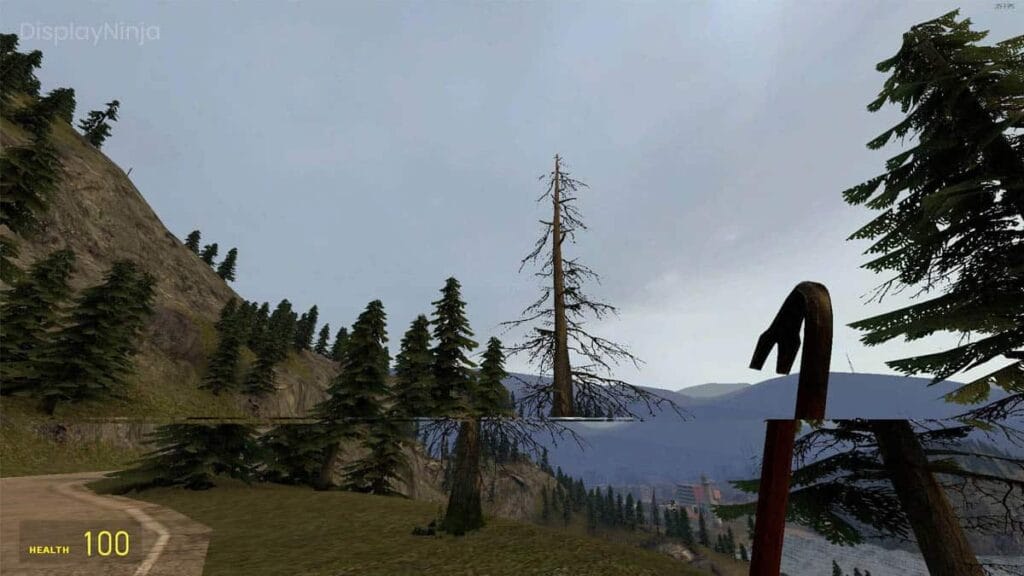
It’s considered the first invented technology to deal with in-game, unbearable screen tearing, and was later superseded by newer technologies such as G-Sync and FreeSync.
What Does Vertical Sync Do?
Vertical Sync synchronizes your GPU’s video game frame output with your monitor’s refresh rate.
Refresh rate refers to how many times your monitor refreshes the image on your screen at a fixed rate, such as the famous 60 Hz, 144 Hz, 180 Hz, and more in the case of high refresh rate monitors.
When you disable V-Sync, the GPU immediately sends the next frame to your monitor as soon as it’s rendered, causing you to see a part of the new rendered frame and the old frame at the same time, usually with a painful screen tearing to your eyes.
On the other hand, if you enable V-Sync, your GPU is forced to wait for your monitor to fully render the previous frame, and then it can send the next frame. This ensures that each monitor’s refresh displays one complete frame, eliminating tearing.
The downside of this technology is timing. If you have a weak GPU, it can’t consistently render frames fast enough to match your monitor’s refresh rate, which causes the GPU to wait for the next refresh cycle.
This waiting period, even if it’s just some milliseconds, can lead to input lag, unbearable FPS drops, and unresponsive gameplay (low average 1% lows).
This is why vsync got replaced by adaptive sync, which adjusts the monitor’s refresh rate dynamically and matches your GPU frames output instead of forcing the GPU to wait. This technology is used by a lot of players.
Is V-Sync Deprecated?
No, V-Sync is not deprecated; it’s useful for players who don’t have a monitor or a GPU that supports Adaptive Sync (GSYNC or FreeSync), and in single-player video games where responsiveness is less critical.
Differences Between Vsync and Adaptive Sync (Vsync VS Adaptive Sync)
Both of those technologies aim to eliminate screen tearing, but they solve the problem in very different ways, and that matters a lot.
V-Sync locks your GPU’s frame output to your monitor’s fixed refresh rate. If the GPU renders faster, frames are delayed. If it renders more slowly, FPS drops in large steps.
Adaptive Sync allows the monitor to dynamically change its refresh rate to match the GPU’s current frame rate. This keeps frames and refresh cycles aligned without forcing the GPU to wait.
Popular Adaptive Sync standard implementations include G-Sync and FreeSync.
What Is Anti-Aliasing (AA)?
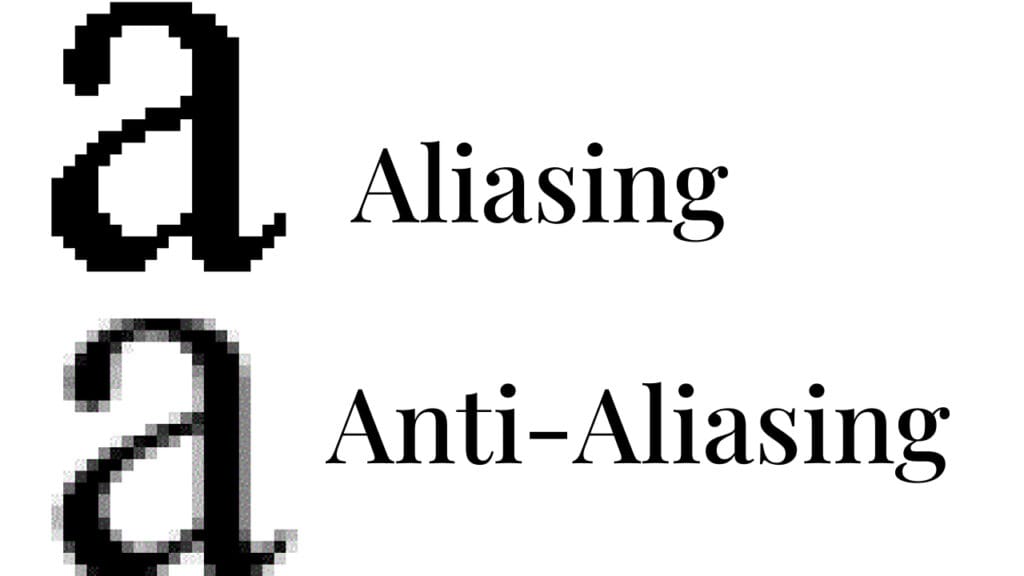
Anti-Aliasing (AA) is a graphics technique designed to eliminate jagged edges, which is often called aliasing, by smoothing them through a bunch of calculations to reconstruct missing details.
All screens are made of a fixed grid of pixels. When a diagonal or curved edge doesn’t align perfectly with that grid, the result is stair-step looking pixels instead of a smooth line. The lower the resolution, the more noticeable this becomes.
Anti-Aliasing improves how clean and smooth a video game’s visuals look, but choosing the wrong AA type can reduce sharpness or impact your in-game FPS. This is why understanding AA really matters when optimizing PC for gaming.
What Are The Common Anti-Aliasing Types?
Most modern video games offer a lot of methods or types of Anti-Aliasing (AA). If you wanna optimize your video game’s visual fidelity and image quality while maintaining in-game performance, you must understand them to choose the best settings for your specific hardware.
FXAA (Fast Approximate Anti-Aliasing)
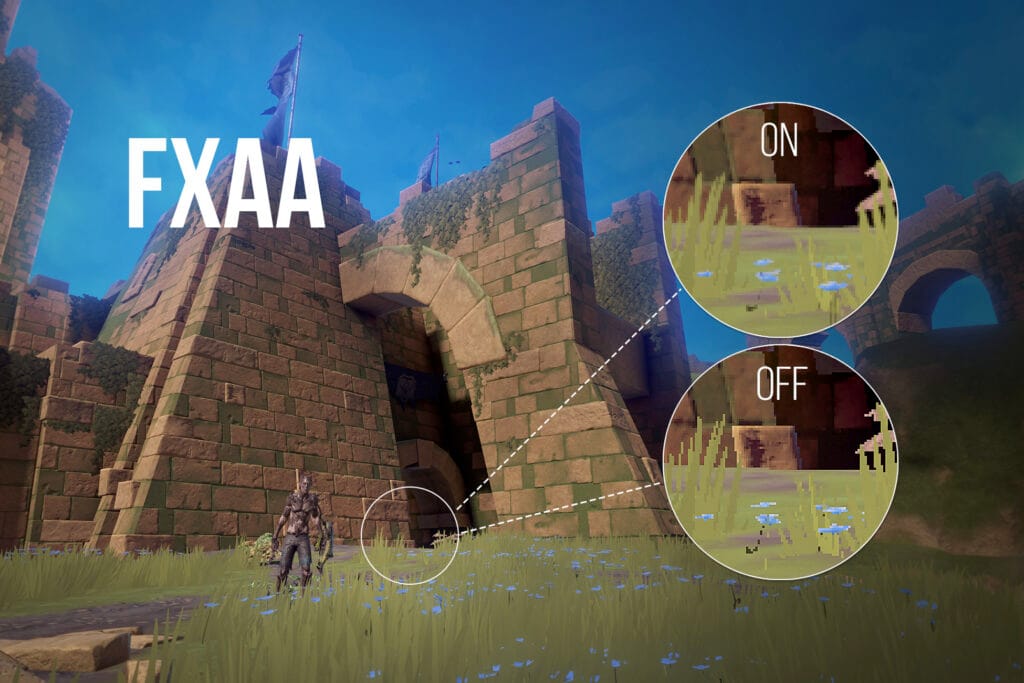
FXAA is a post-processing anti-aliasing technique designed to smooth jagged edges with minimal performance impact.
Instead of analyzing geometry during rendering, FXAA is applied after the frame is completed, detecting high-contrast edges and blending them to reduce aliasing.
The main downside is image clarity. Since FXAA smooths the entire image, not just edges, it can introduce a slightly blurry or soft look, especially at lower resolutions or on in-game text and UI elements.
TAA (Temporal Anti-Aliasing)
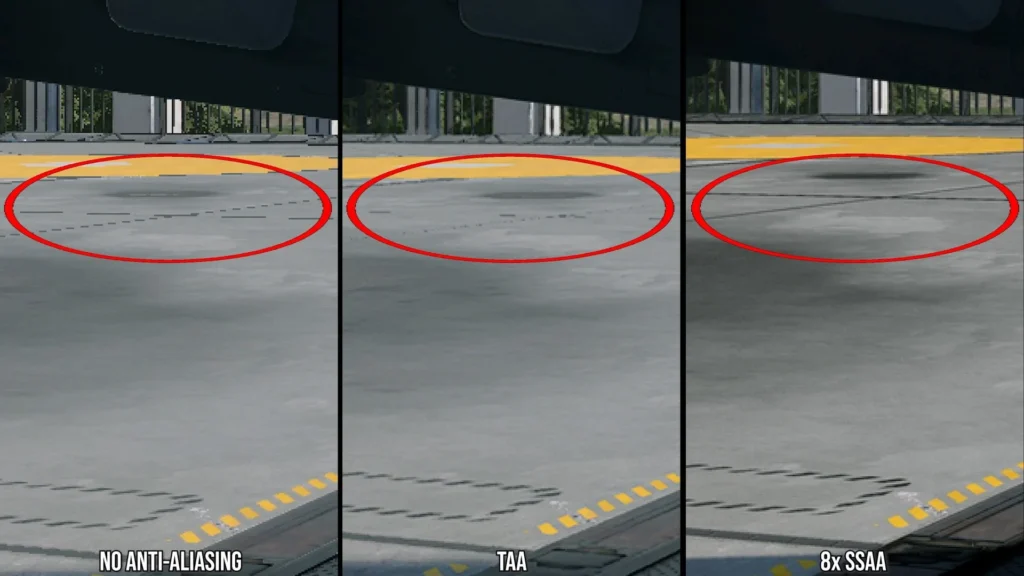
TAA (Temporal Anti-Aliasing) is a modern anti-aliasing technique that smooths edges by using data from multiple frames over time instead of analyzing a single frame in isolation.
By blending information from previous frames, TAA reduces shimmering, flickering, and crawling edges during movement.
The main trade-off is image clarity, just like Fast Approximate Anti-Aliasing does.
MSAA (Multi-Sample Anti-Aliasing)
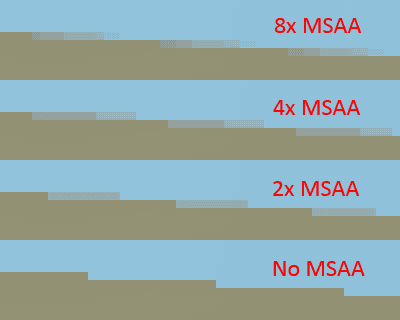
MSAA (Multi-Sample Anti-Aliasing) is a geometry-based anti-aliasing technique that smooths jagged edges by sampling multiple points along object edges during the rendering process.
Unlike the previous post-processing methods, MSAA targets edge geometry only, preserving image sharpness.
The main drawback of this type of AA is performance. MSAA significantly increases your GPU workload and VRAM usage, while also adding rendering complexity, especially at higher resolutions.
As the sample count increases (2x, 4x, 8x), the in-game performance cost rises quickly.
While anti-aliasing can improve image quality, it should always be adjusted after choosing the right resolution and core settings. For a complete step-by-step approach, see our guide on how to optimize your PC for gaming.
Some Anti-Aliasing Alternatives (DLSS and FSR Upscaling)
Upscaling technologies such as DLSS of Nvidia and FSR of AMD usually replace anti-aliasing (AA) entirely in modern games by combining resolution upscaling, frame reconstruction, and edge smoothing.
DLSS acts as both an upscaler and an anti-aliasing solution, rendering the game at a lower internal resolution and using AI-based reconstruction to produce a much sharper, higher-resolution frame.
Because of that, DLSS always delivers higher FPS compared to native resolution AA.
AMD’s FSR follows a similar concept but relies on spatial or temporal reconstruction rather than dedicated AI hardware within a GPU, as is the case with Nvidia GPUs. Both of these technologies work best at 1440p and 4K.
1440p resolution starts at a lower resolution of 1080p, whereas 4K starts at a lower resolution of 1440p.
How This Fits Into PC Optimization
Anti-aliasing and V-Sync are only a small part of optimizing your gaming experience. While they affect visual quality, input lag, and smoothness, the biggest performance gains come from properly tuning your in-game settings, GPU configuration, and system setup.
For a complete step-by-step guide, check out our How to Optimize PC for Gaming Like a Pro article, where we cover everything you need to know to tweak your system for video games.
Performance Impact of Anti-Aliasing
Anti-Aliasing improves your game’s visuals at the cost of its performance. The size of that cost depends on the anti-aliasing method used, your actual video game resolution, and the power of your GPU.
Most anti-aliasing techniques incorporate post-processing methods into in-game frames, which increases your GPU workload. FXAA, for example, has a minimal impact, while techniques such as TAA and MSAA require more complex calculations.
VRAM consumption is also increased when enabling anti-aliasing. For example, MSAA stores multiple samples per pixel (It could be x2,x4,x8, or x16). Higher sample counts and higher resolutions multiply video memory usage.
When you go for high resolution (1440p and beyond), aliasing becomes less noticeable. The visual benefit of anti-aliasing is reduced, while the performance cost on your GPU remains.
This is why many players gaming on those resolutions rely on upscaling technologies like DLSS and FSR, which improve the visual fidelity and boost in-game FPS using AI capabilities.
Conclusion
Anti-Aliasing and V-Sync solve two different problems: jagged edges and screen tearing. If you use them correctly, you can noticeably improve your in-game visual quality.
Unfortunately, if you enable them blindly, that can be at the cost of your in-game performance and responsiveness.
The best approach is really simple: choose the lightest AA method that delivers decent image quality, and use V-Sync only when tearing is distracting or adaptive sync isn’t available for you.
Understanding anti-aliasing and V-Sync helps you fine-tune visual quality and responsiveness, but true optimization comes from balancing all aspects of your system.
For a full breakdown, read our guide on how to optimize your PC for gaming like a pro.
Optimizing these settings based on your hardware leads to a smoother and more balanced gaming experience.