Table of Contents
AI is creeping into every corner of our lives, even our PCs.
Microsoft built AI into the core functionality of Windows 11 without letting people consent, and a lot of users aren’t happy about that.
AI bloatware can make the operating system feel slower, especially on PCs that meet the minimum Windows 11 requirements.
For some users, the problem isn’t just the AI itself. It’s how much data Windows can collect about you. That alone makes some people worry about their privacy.
The good news is that I removed most of the AI bloatware and Windows 11 works fine, and you can too.
You don’t need to understand how Windows works under the hood to clean this stuff up.
I’ll show you step-by-step how to debloat your Windows 11 from unwanted AI bloatware, what you can safely remove, and what you should leave alone if you don’t know what you are doing.
Windows 11 AI Bloat Integration
Windows 11 comes with a lot of AI tools out of the box that you may not use. Some of them can be disabled, and the others can be removed entirely. Before changing anything, it’s useful to understand what you’re actually removing.
What Do “Bloatware” & “AI Bloat” Mean?
Bloatware refers to the pre-installed apps in Windows 11 that don’t add real value to the PC user.
You may not use or need bloatware apps, so they just waste disk space and hardware resources that could be put to good use.
“Bloatware” and “AI Bloat” are pretty much related. The only difference is that “AI Bloat” is a specific type of bloatware that uses artificial intelligence to provide its features and functionalities.
Why Remove Unwanted AI?
AI bloat can make the Windows 11 experience feel worse, especially if you don’t use these features. Its pop-ups and widgets seem to be everywhere.
I use Windows 11 at work every day, and I can understand why some people find it too bloated; even companies complain about how much Microsoft’s bloatware is eating memory resources.
Elderly people and users who aren’t tech-savvy can find Windows 11 complicated to handle, especially with all the extra AI features.
Personally, I find that for those reasons, removing AI is worth it.
Can Removing AI Break Something in Windows?
Yes, that can happen.
As I said, Windows 11 has AI built into some features, so if you mess with something you shouldn’t, you could cause problems with certain Windows features.
Later in this article, I’ll include what is safe to remove and what you should leave alone.
What to Do Before Debloating Windows 11?
There are a few things you should do before removing AI features from Windows 11. The steps can be slightly different depending on which AI features you want to remove.
Create a Restore Point & Back Up Your Data
First, create a restore point so you have a way back if something goes wrong.
Second, back up your personal files. Debloating shouldn’t normally delete them, but having a backup is still a good precaution before modifying anything in Windows.
Decide What You Actually Want to Remove
Now that you have a restore point and backed up your important files, decide which AI features you actually want to get rid of.
Not every AI-related feature in Windows 11 needs to be removed.
Some apps or features are connected to parts of Windows that you still want to use.
Later in this article, I’ll show you:
- How to remove Microsoft Copilot.
- How to disable Windows Recall.
- How to disable various AI features in your everyday apps like Microsoft Excel and Word.
- How to turn off other Windows 11 features that track you and collect various data about you.
Follow any section to remove the specific AI feature you don’t want.
Debloat Windows 11 of Unwanted AI Features and Apps
Now that you know what to do before debloating Windows 11, it’s time to start debloating it. I’ll show you how to remove or disable the AI features and apps you don’t want, without messing with the parts of Windows you still need.
Uninstall Unwanted Apps in Settings
The simplest, easiest, and safest way to debloat Windows 11 of useless preinstalled apps is to uninstall them directly from the Settings app.
That’s what 99% of people need. You don’t need a special debloat script.
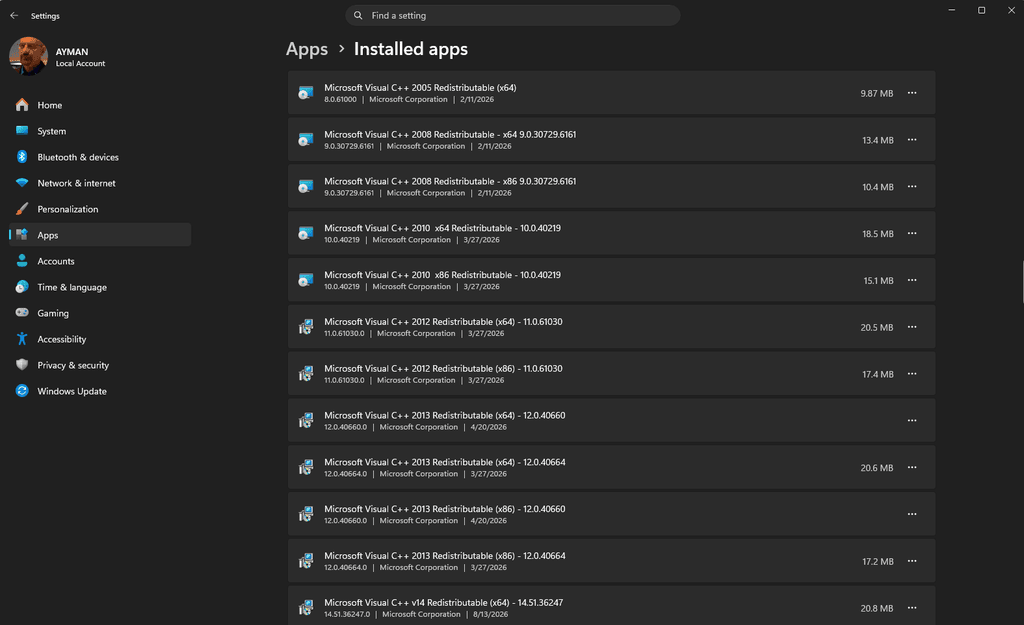
Go to Settings > Apps > Installed apps, find the app you don’t want, click the three dots (…), and select Uninstall.
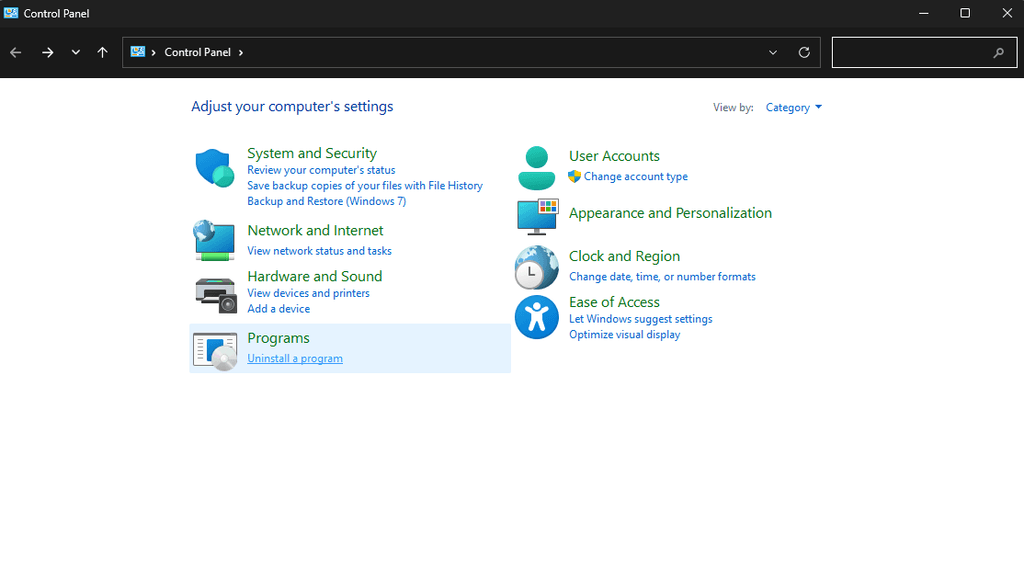
You can achieve the same thing by going to Control Panel > Uninstall a program. You can choose any software that you don’t want and click the Uninstall/Change option.
Removing Microsoft Copilot
You can’t ask Microsoft Copilot to uninstall itself. Instead, if you don’t use it, you can uninstall it directly from Windows 11.
- Open “Settings”.
- Go to “Apps > Installed apps”.
- Search for “Copilot”.
- Click the “three dots (…)” next to Copilot.
- Select “Uninstall”.
- Click “Uninstall” again to confirm.
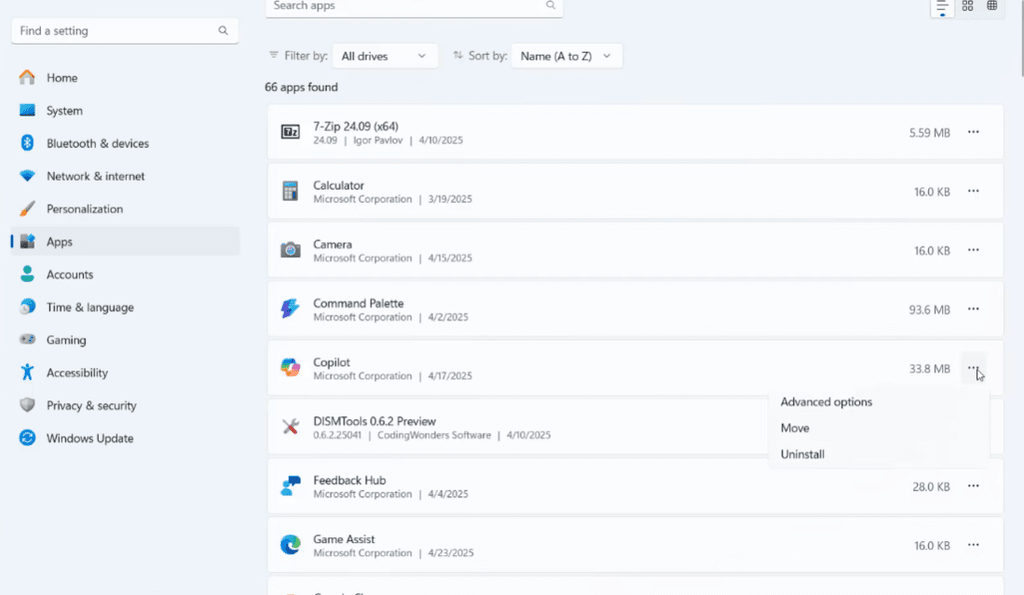
That’s it. Windows will remove the Copilot app from your PC.
If you want to use Copilot again later, you can reinstall it from the Microsoft Store.
Removing Microsoft 365 Copilot
Microsoft confirms that the Copilot app can be removed from Windows 11 in the Settings app; you can uninstall it just like other apps.
- Open Settings.
- Go to Apps > Installed apps.
- Search for Microsoft 365 Copilot or Copilot.
- Click the three dots (…) next to it.
- Select Uninstall.
- Click Uninstall again to confirm.
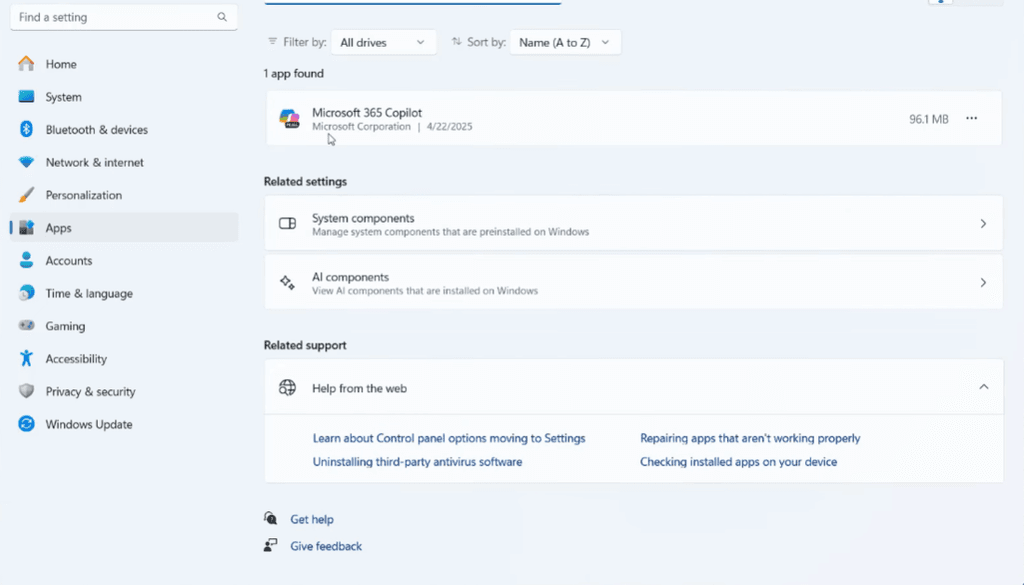
Please note that Microsoft changed the app’s name, so you may see Microsoft Copilot rather than Microsoft 365 Copilot, depending on the version. The former Microsoft 365 Copilot app is now named Microsoft Copilot.
Disabling Windows Recall
If you don’t want Recall saving snapshots of your activity, you can disable it completely from Windows Features.
- Search for ”Turn Windows features on or off” from the Windows taskbar.
- Open it.
- Find ”Recall” in the list.
- Uncheck ”Recall”.
- Restart your PC.
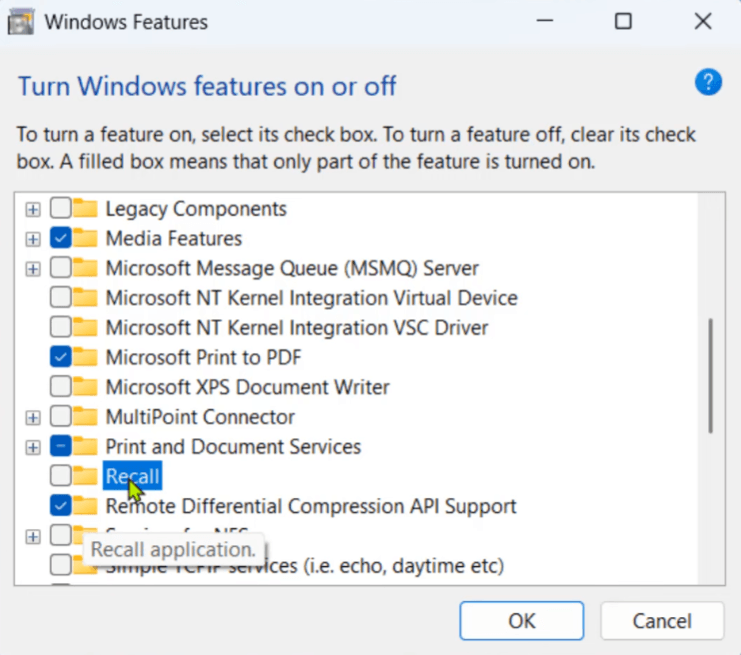
Removing Recall will also delete any snapshots that were previously saved.
How to Disable AI Features in Windows Apps
Some AI features aren’t separate software. Instead, they are built into software we use every day on Windows 11, such as Microsoft 365 apps like Word, Excel, and PowerPoint.
In this section, I’ll show you how to disable Copilot in them.
Disabling Copilot in Word, Excel, and PowerPoint.
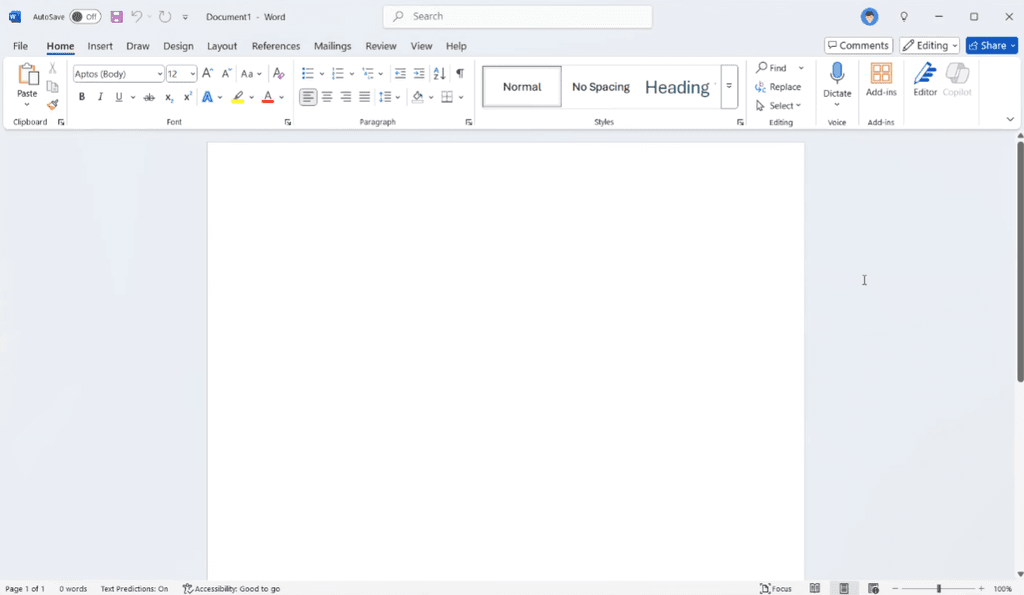
As you can see, Microsoft Word has Copilot in it. The good news is that we can disable it.
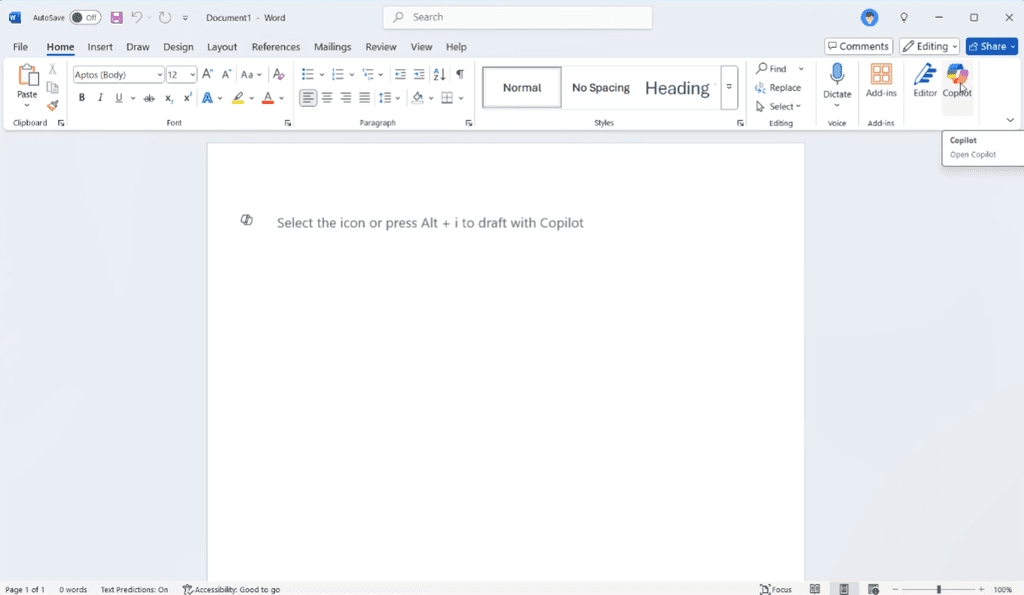
First, select File > Options, and you will see the Word options pop up.
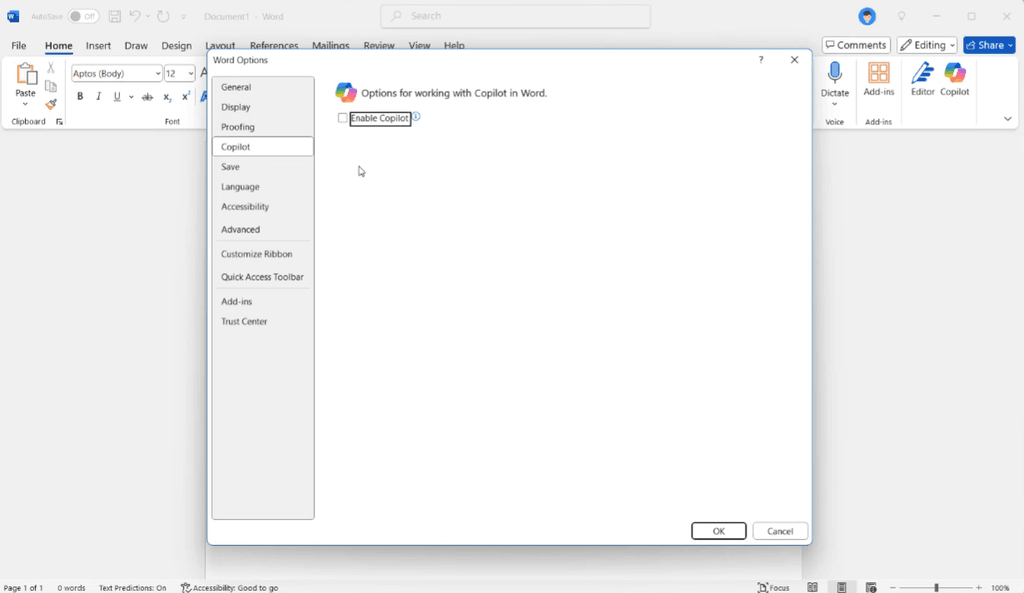
From there, you must choose Copilot and then turn off the feature. Click OK and restart the program; now you will see that the Copilot icon is hollow.
Since Microsoft Excel and PowerPoint are Microsoft products too, they have Copilot built into them too.
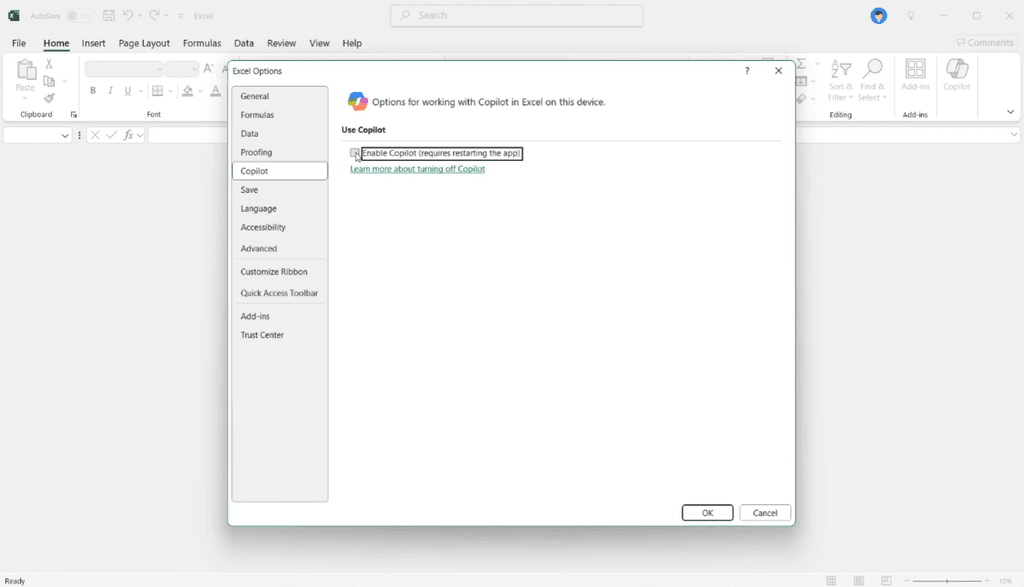
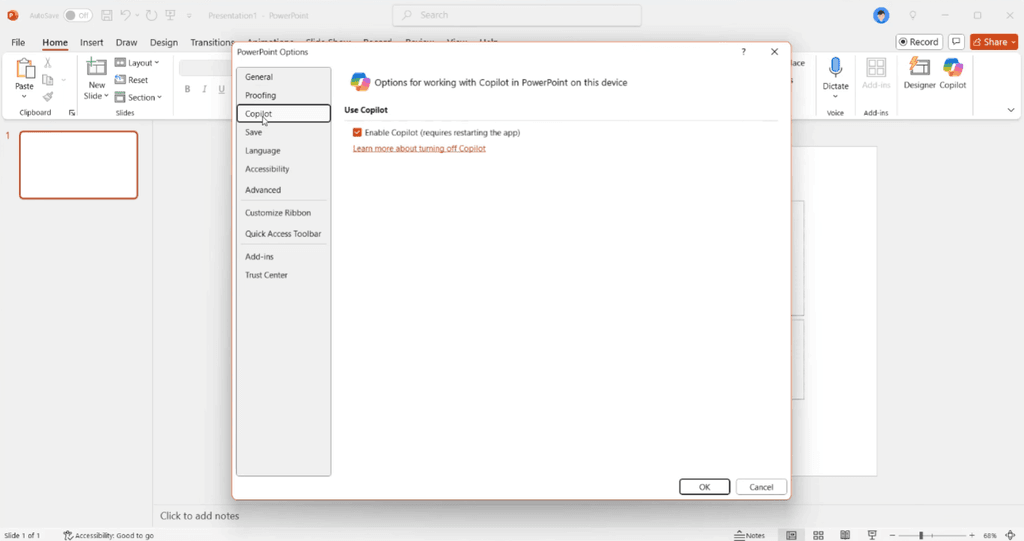
The process is pretty much the same as Microsoft Word. You need to open both Excel and PowerPoint Options and turn off the feature as we did before, then restart the app.
Disabling Copilot in Microsoft Edge
“We only use Edge to download Google Chrome.” That’s a funny joke told by Edge haters, but if you actually use Microsoft Edge, you can disable the Copilot features built into it.
First, click on the three dots in the top-right corner and select Settings.
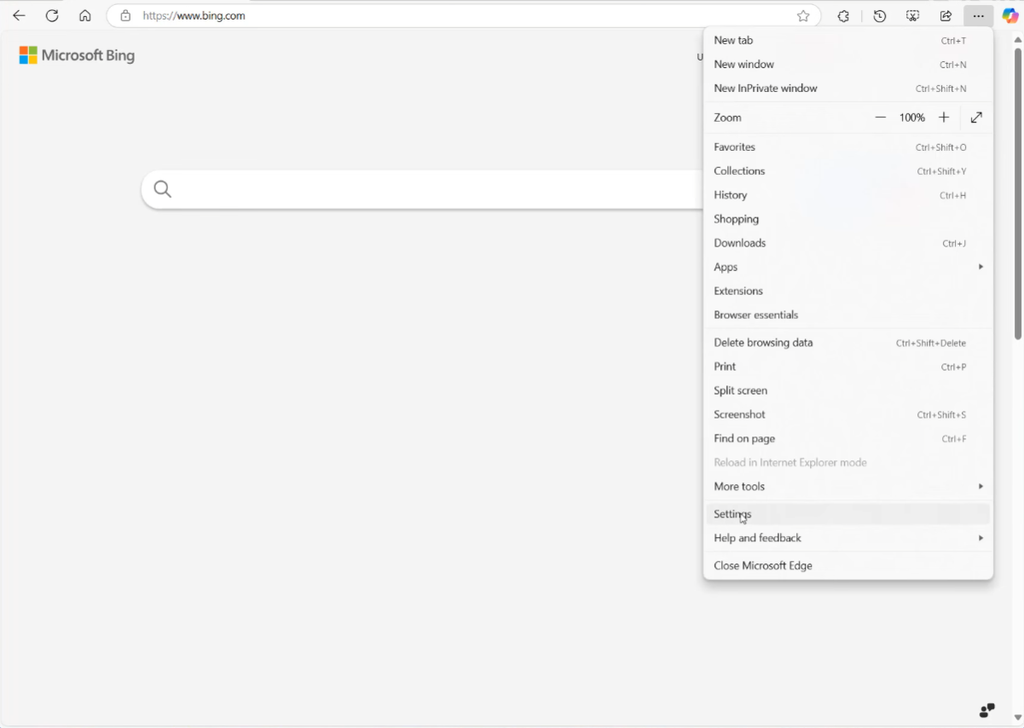
In the Settings menu, select Copilot and sidebar.
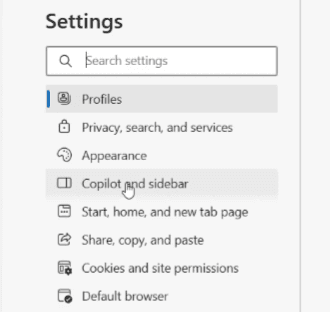
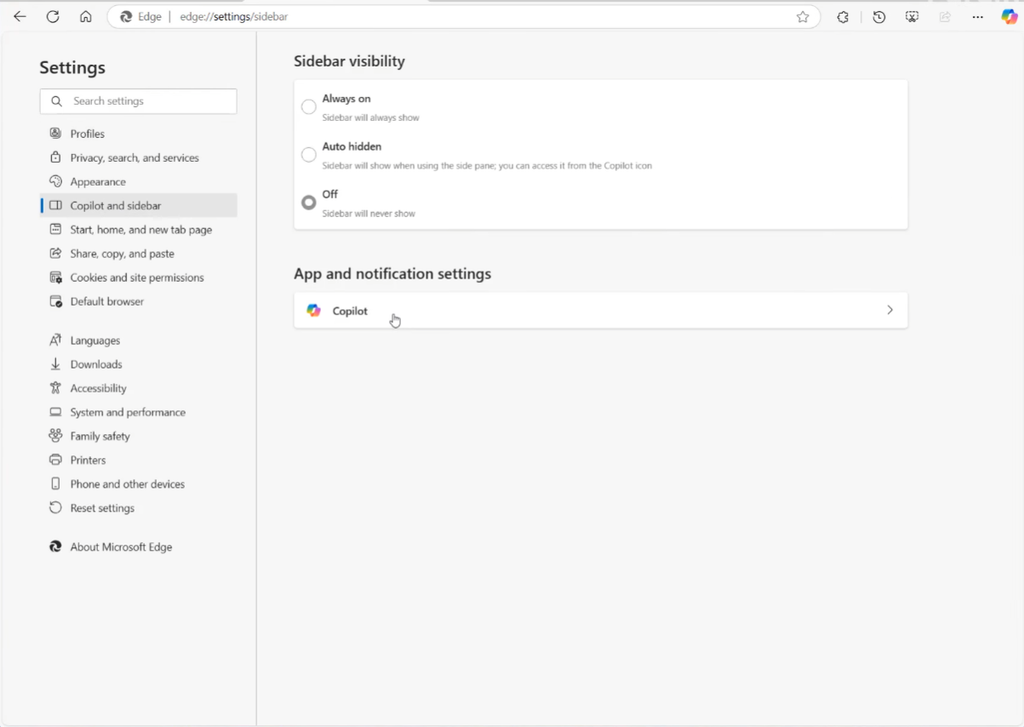
Under App and notification settings, click on Copilot.
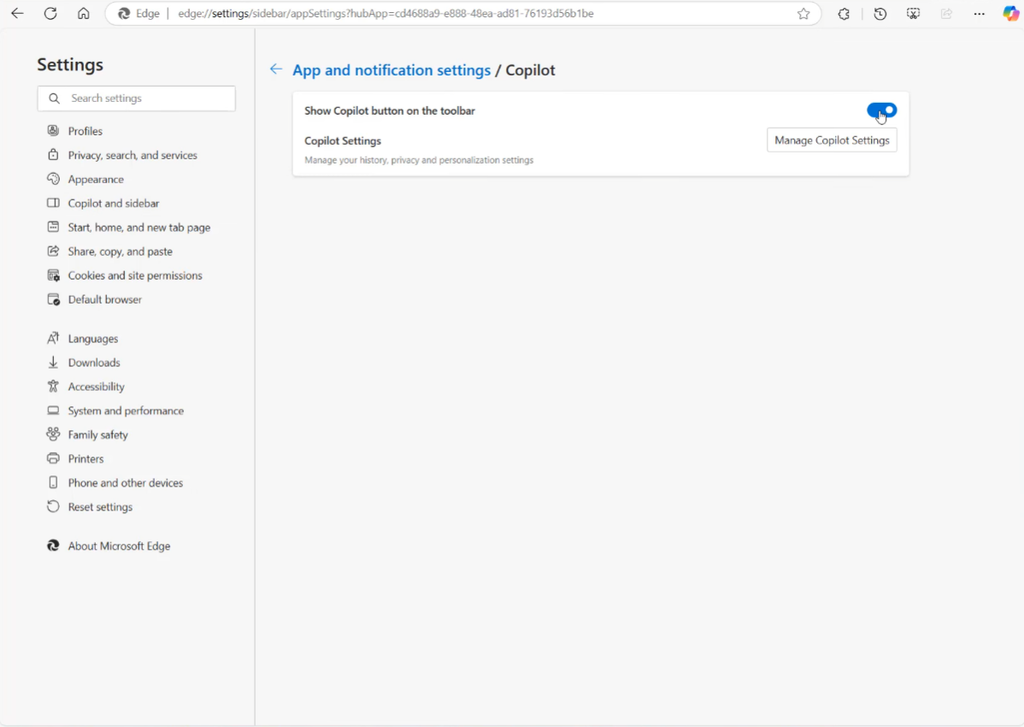
Disable the Show Copilot button on the toolbar, and you will see that the Copilot button is gone from the top-right corner of Edge.
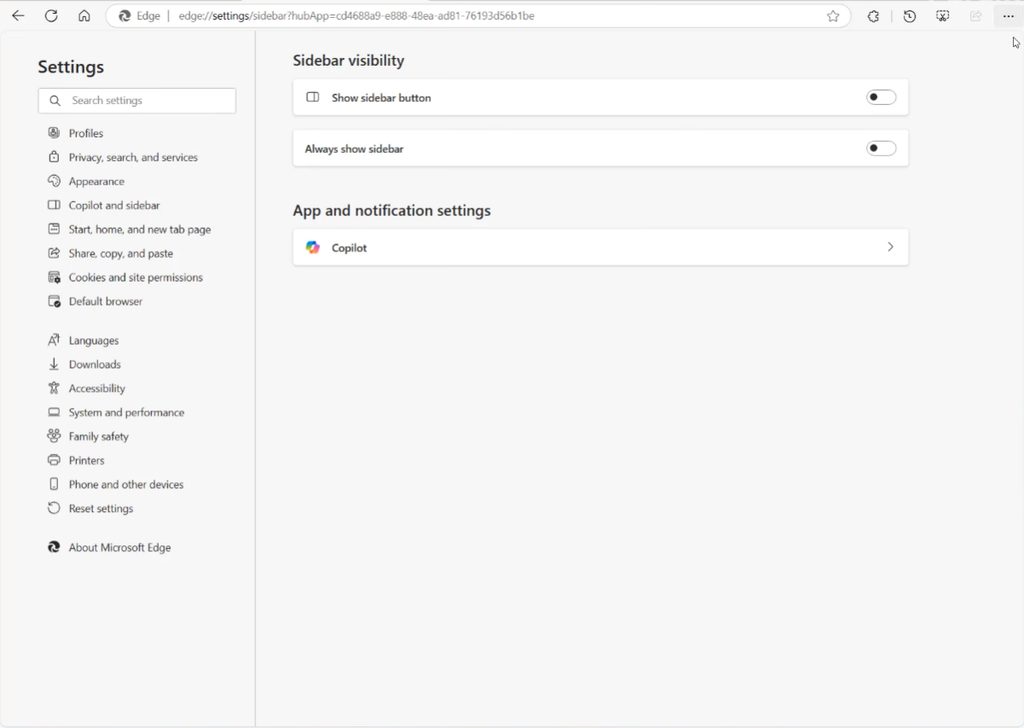
Finally, go back and disable the Show sidebar button.
That’s it. The Copilot and sidebar buttons are now gone, leaving only the three-dot menu in the top-right corner.
What Should You Leave Alone?
It’s true that Windows 11 is full of AI slop and might raise privacy concerns, but if Windows doesn’t let you uninstall an app through Settings or the Control Panel, I recommend leaving it alone.
You don’t need to force-remove every app that comes with Windows 11. Some apps and components are there for a reason, like Microsoft Edge, and removing them with scripts or other methods can cause problems later.
There are debloat tools and scripts, such as Chris Titus Tech’s Windows Utility and Zoicware’s Windows 11 Debloat, that can remove or change more than you can through the Settings app. I’ll cover these tools in a separate guide and explain what they actually remove and how to use them safely.
Does Removing AI Make Windows 11 Faster?
The short answer is: maybe, but don’t expect a huge performance boost.
If your PC is already struggling with performance, there are other things that you can do that are likely to have a bigger impact than removing AI alone.
Removing an app or disabling an AI feature within Windows can reduce some background activity and free up some space. However, you probably won’t notice a major difference in performance just by doing that.
The main reason to debloat Windows 11 is to remove features you don’t want and keep your Windows installation cleaner.
Frequently Asked Questions
Can I Remove All AI From Windows 11?
No. Some AI features are built into Windows and Microsoft apps. You can remove or disable many of the optional ones.
Can I Reinstall Copilot?
Yes. You can reinstall it from the Microsoft Store.
Will Removing AI Break Windows?
Usually not, if you stick to features that Windows lets you uninstall or disable normally.
Does Removing Copilot Improve FPS?
Probably not. Any performance improvement is likely to be very small.
Should I Use a Debloat Script?
Not if you’re a beginner. Start with the built-in Windows settings first.
Can I Undo the Changes?
Yes. Many changes can be reversed by reinstalling or re-enabling the feature. The restore point that we set up earlier can also help.